

Use the Training Manager toolgun
Hello
If you are here, you are probably interested to know how to use the Training Manager toolgun.
When installing the addon, this toolgun is available in the Q menu, in the Diablos Addon category.
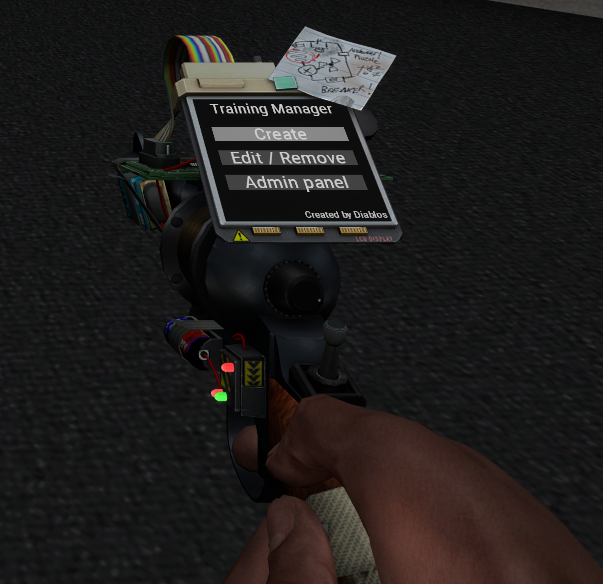
This toolgun allows you to:
- Create the entities (which will save them and restore them after a cleanup/restart)
- Edit / removing the entities permanently
- Access the Admin Panel
Create the entities
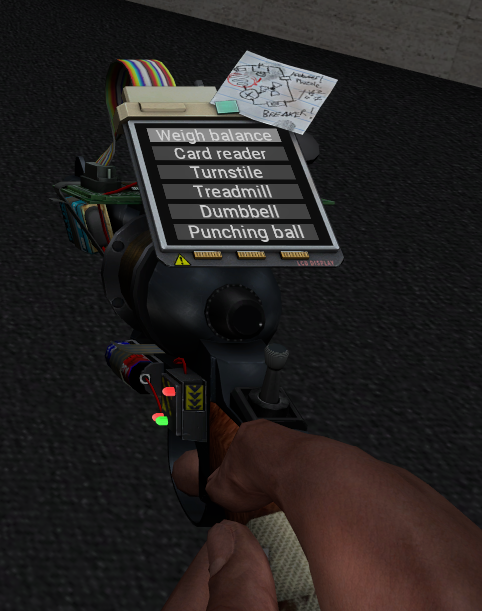
If you are in option 1, you have the ability to create the entities listed on the picture.
You need to hit the floor with your toolgun as the entity will be created in the trace hit.
Exception: for the punching ball, you need to hit the ceil of your room.
When doing so, you will have a frame to tell you what you are creating, then you are able to click on SAVE to save it in the hit position of the toolgun.
For some entities (Treadmill - Dumbbell - Punching Ball), you need to choose a specific parameter (meaning bodygroup) before saving it. This will change the training difficulty, as every entity has its own difficulty. You could edit the parameter of the entity at anytime, using the toolgun.
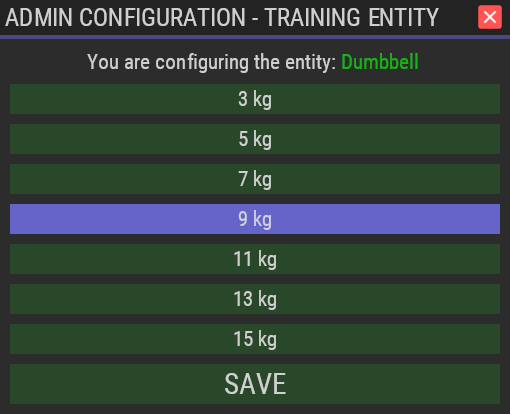
You can click on Save and your entity will be saved.
If you are in the admin groups for the training addon and you're taking your physics gun to edit the place of an entity, the new position & angle will instantly be saved. It means that you can replace your entity at anytime without using the toolgun as this saves the data of the training entities everytime you drop them with your physgun.
Edit / remove the entities
To do so, use RIGHT CLICK to switch the purpose to the option 2 in the main menu. Remember you can press R at any time to return to the main menu with the 3 options.
Then, you can left click on this option.
After that, the toolgun will tell you that you need to hit (using left click) the entity you want to edit / remove.
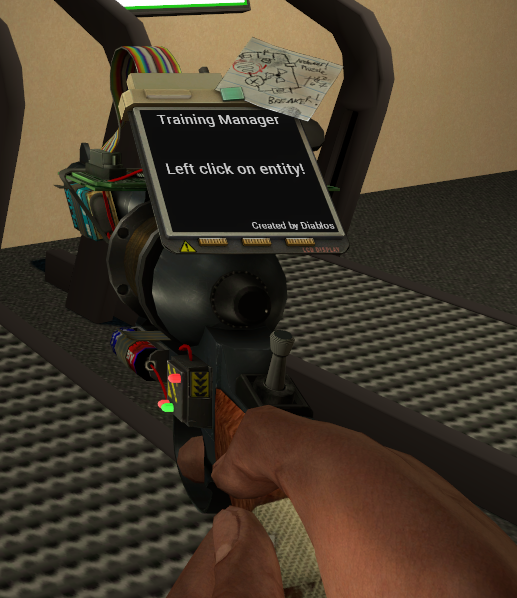
You can change the bodygroup (if the entity has different bodygroups) or remove the entity.
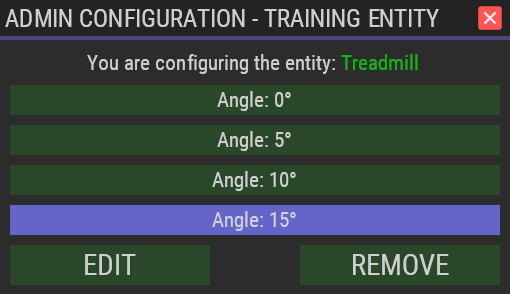
Note: You can also grab the training entities using the physgun while being an admin, and when releasing the entity, the position/angle will be updated for the permanent save. This means you can change their position/angle how you want without taking the Training Manager toolgun to "edit" it.
Admin panel
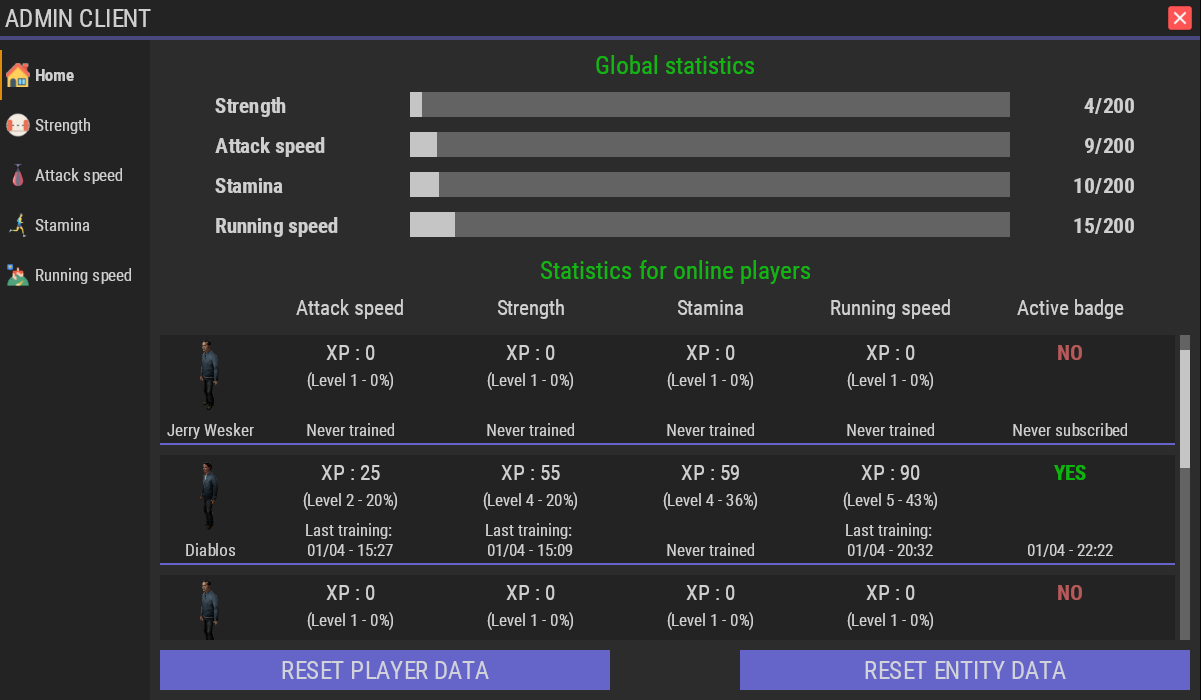
The admin panel home gives you the opportunity to:
- Have statistics about online player (to know what's going on with XP with different trainings)
- Reset entity data: a confirmation box would appear as this means removing all the entities saved for the map.
- Reset player data: a confirmation box would appear as this means removing all the training players data and everyone would start from zero.
You can also click on a specific training, in which case you would have this:
Here you are able to define a specific XP for online players: for example giving you and your friends the maximum XP. You just need to select them by clicking on their lines, then writing the XP you want to set them, and save it. This will refresh all the data about them immediatly.
That's almost all. If you have any question, you can open a support ticket.